

All About Colors#
This page is a collection of all of py5’s color-related integrations with other Python libraries.
In addition to what is documented here, the Charts, Plots, and Matplotlib page documents a color-related matplotlib contribution for color gradients. Scroll to the bottom of the page to read about the Colormap Color Mode.
Setup#
To use all of the features documented on this page, you’ll need to install the colour and matplotlib libraries with pip or with conda.
pip install colour matplotlib
conda install colour matplotlib -c conda-forge
For more information, refer to the colour library’s documentation on github or the matplotlib website.
from colour import Color

import py5_tools
import py5
Matplotlib Named Colors#
Built in to matplotlib is an extensive list of named colors. Matplotlib users can use this list to customize the aesthetics of their charts. Py5 users can also access this inventory of colors to customize the aesthetics of a Sketch.
Here is a simple example, referencing each color as a string.
def setup():
    py5.size(400, 400)
    py5.background(240)
    py5.no_stroke()

    # matplotlib base color, magenta
    py5.fill('m')
    py5.rect(20, 20, 170, 170)

    # CSS4 colors
    py5.fill('chartreuse')
    py5.rect(20, 210, 170, 170)

    # tableau palette
    py5.fill('tab:orange')
    py5.rect(210, 20, 170, 170)

    # xkcd color survey
    py5.fill('xkcd:blue with a hint of purple')
    py5.rect(210, 210, 170, 170)

    # add some text labels
    py5.fill('black')
    py5.text('m', 70, 105)
    py5.text('chartreuse', 70, 295)
    py5.text('tab:orange', 255, 105)
    py5.text('xkcd:blue with a hint of purple', 220, 295)


py5.run_sketch()
py5_tools.screenshot()
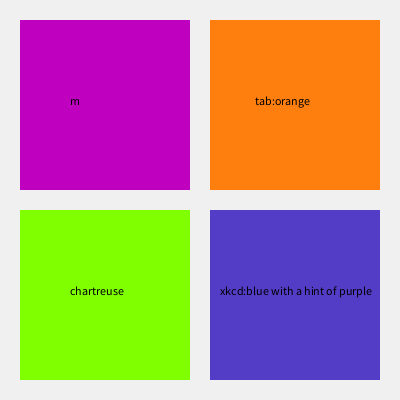
This works well, but it requires you to either remember the names of the available colors or to constantly refer back to the list of named colors. This is an extra challenge for non-english speakers, as well as anyone who cannot remember the correct spelling of words like “chartreuse.”
As an alternative, py5 has a built-in dictionary of the full CSS4
and xkcd color survey inventories available for your use. Access
the dictionaries with py5.css4_colors and py5.xkcd_colors. These
are especially useful when coding an environment that supports code
completion, such as Jupyter Notebooks or VSCode. Coders will be
able to scroll through the list of color names and select the one
that sounds appropriate for their use case.
def setup():
    py5.size(400, 400)
    py5.background(240)
    py5.no_stroke()

    py5.fill(py5.css4_colors.FIREBRICK)
    py5.rect(20, 20, 170, 170)

    py5.fill(py5.css4_colors.PALETURQUOISE)
    py5.rect(20, 210, 170, 170)

    py5.fill(py5.xkcd_colors.PERIWINKLE_BLUE)
    py5.rect(210, 20, 170, 170)

    py5.fill(py5.xkcd_colors.PALE_MAUVE)
    py5.rect(210, 210, 170, 170)

    # add some text labels
    py5.fill(py5.css4_colors.BLACK)
    py5.text('css4_colors.FIREBRICK', 30, 105)
    py5.text('css4_colors.PALETURQUOISE', 30, 295)
    py5.text('xkcd_colors.PERIWINKLE_BLUE', 215, 105)
    py5.text('xkcd_colors.PALE_MAUVE', 215, 295)


py5.run_sketch()
py5_tools.screenshot()
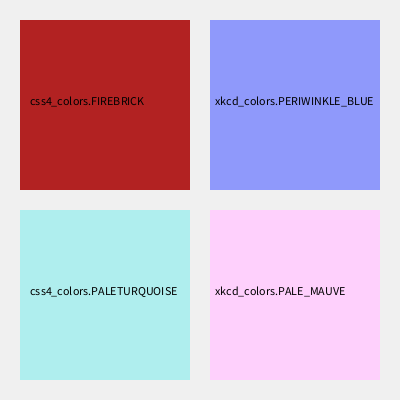
This final color dictionary feature is added to py5 when py5 is built so you can use it without installing matplotlib.
Colour Library#
The colour library is integrated into py5.
Any method with color parameters that accepts Hex Color Codes or Hexadecimal
Integers will also accept instances of the colour.Color class.
The colour library provides extensive color-related functionality that does overlap somewhat with py5’s built-in functionality. It is the colour library’s unique features that make this integration useful. We will demonstrate some of the features here, but also have a look at the colour library’s documentation on github for the complete feature set.
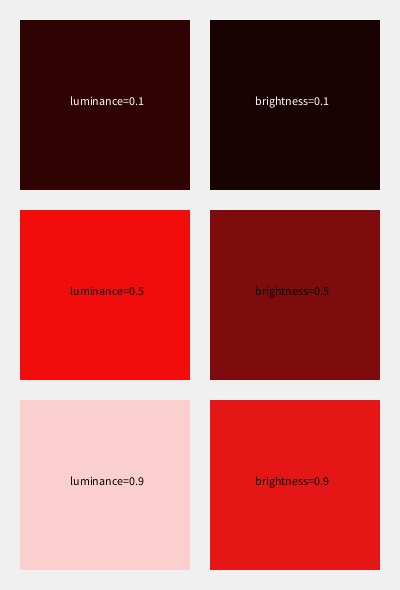
One of the unique features that will be made clear here is that the colour library supports the HSL (Hue, Saturation, Lightness) color model. This contrasts with py5’s HSB (Hue, Saturation, Brightness) color model (also known as HSV, with the V standing for Value). The HSL and HSV color models are similar but are not the same. HSB (HSV) attempts to model how colors appear under light. HSL models the way different paints mix together to create color in the real world.
Our example Sketch below will experiment with this new library while also exploring the differences between the color models.
def setup():
    py5.size(400, 590)
    py5.background(240)
    py5.no_stroke()

    py5.color_mode(py5.HSB, 360, 1.0, 1.0)

    py5.fill(Color(hue=0, saturation=0.9, luminance=0.1))
    py5.rect(20, 20, 170, 170)

    py5.fill(Color(hue=0, saturation=0.9, luminance=0.5))
    py5.rect(20, 210, 170, 170)

    py5.fill(Color(hue=0, saturation=0.9, luminance=0.9))
    py5.rect(20, 400, 170, 170)

    py5.fill(0, 0.9, 0.1)
    py5.rect(210, 20, 170, 170)

    py5.fill(0, 0.9, 0.5)
    py5.rect(210, 210, 170, 170)

    py5.fill(0, 0.9, 0.9)
    py5.rect(210, 400, 170, 170)

    # add some text labels
    py5.fill("#fff")
    py5.text('luminance=0.1', 70, 105)
    py5.text('brightness=0.1', 255, 105)

    py5.fill("#000")
    py5.text('luminance=0.5', 70, 295)
    py5.text('luminance=0.9', 70, 485)
    py5.text('brightness=0.5', 255, 295)
    py5.text('brightness=0.9', 255, 485)


py5.run_sketch()
In our example, we were able to create instances of colour.Color and
pass them to the fill() method.
As you can see below, colors in the HSL model become whiter as the luminance approaches 100%. In the HSB model, colors become brighter forms of the given hue.
py5_tools.screenshot()
The remainder of the color features described on this page are built-in to py5 and are independent of the colour library.
Hex Color Codes#
Any Web Color or Hex Color Code can be used as a color. The color code must always be a string with values representing red, green, blue, and optionally the alpha channel, in that order. This is consistent with the hex color codes found in HTML and CSS files.
The Hex Color Code is always a "#" character followed by a 6 or 8 digit
hexadecimal number. If a 6 digit hexadecimal number is used, the color
has no transparency. If an 8 digit hexadecimal number is used, the color
has an alpha channel. The Hex Color Code should always be a string, wrapped
in quotes. Uppercase and lowercase are both fine.
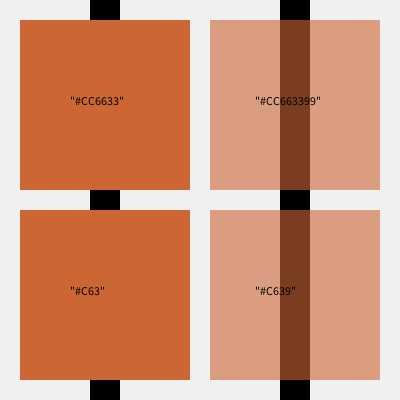
A 6 digit example is "#CC6633" and an 8 digit example is "#CC663399".
You may also use Shorthand hexadecimal form.
With this specification, the Hex Color Code is always a "#" character
followed by a 3 or 4 digit hexadecimal number. To convert shorthand form
to the canonical form, repeat each digit. For example, "#C63" is the same
as "#CC6633", and "#C639" is the same as "#CC663399".
Let’s create a simple example Sketch that demonstrates the use of Hex Color Codes.
def setup():
    py5.size(400, 400)
    py5.background(240)
    py5.no_stroke()

    # add a black bar so the transparency is obvious
    py5.fill("#000000")
    py5.rect(90, 0, 30, 400)
    py5.rect(280, 0, 30, 400)

    py5.fill("#CC6633")
    py5.rect(20, 20, 170, 170)

    py5.fill("#C63")
    py5.rect(20, 210, 170, 170)

    py5.fill("#CC663399")
    py5.rect(210, 20, 170, 170)

    py5.fill("#C639")
    py5.rect(210, 210, 170, 170)

    # add some text labels
    py5.fill("#000")
    py5.text('"#CC6633"', 70, 105)
    py5.text('"#C63"', 70, 295)
    py5.text('"#CC663399"', 255, 105)
    py5.text('"#C639"', 255, 295)


py5.run_sketch()
py5_tools.screenshot()
Hexadecimal Integers#
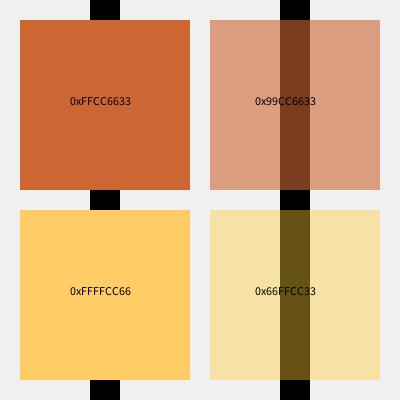
If you like, you can also use a Hexadecimal Integer such as 0x99CC6633.
These are similar to the previously described Hex Color Codes. The main
difference is the alpha value is moved to the beginning.
For this specification, it is always 0x followed by 8 values, and the
order is alpha, red, green, and blue. Do not use quotes. Uppercase and
lowercase are both fine. The Hexadecimal Integer 0x99CC6633 represents
the same exact color as "#CC663399".
Let’s use this in an example sketch.
def setup():
    py5.size(400, 400)
    py5.background(240)
    py5.no_stroke()

    # add a black bar so the transparency is obvious
    py5.fill(0x00000000)
    py5.rect(90, 0, 30, 400)
    py5.rect(280, 0, 30, 400)

    py5.fill(0xFFCC6633)
    py5.rect(20, 20, 170, 170)

    py5.fill(0xFFFFCC66)
    py5.rect(20, 210, 170, 170)

    py5.fill(0x99CC6633)
    py5.rect(210, 20, 170, 170)

    py5.fill(0x66FFCC33)
    py5.rect(210, 210, 170, 170)

    # add some text labels
    py5.fill(0x00000000)
    py5.text('0xFFCC6633', 70, 105)
    py5.text('0xFFFFCC66', 70, 295)
    py5.text('0x99CC6633', 255, 105)
    py5.text('0x66FFCC33', 255, 295)


py5.run_sketch()
py5_tools.screenshot()
Printing Colors#
Let’s take a small diversion.
Printing color values in Processing outputs odd looking numbers. For
example, printing the color created with py5.color(204, 102, 51, 153)
yields the number -1714657741. Why is it such a large negative number?
And how can we look at that number and determine if it is our intended
color?
Rather than ponder these mysteries, py5 added some Python magic to colors so that they display useful information when printed. For example:
print(py5.color(0xFFCC6633))
Py5Color(RGB, red=204/255, green=102/255, blue=51/255, alpha=255/255, hue=20/360, saturation=75/100, brightness=80/100)
That’s much easier to comprehend than -1714657741.
You will never create Py5Color instances directly. They are created for you with color() as well as any other method that returns colors (such as Py5Shape.get_fill()).
Also, observe that you can create colors in py5 outside of a running Sketch. When colors are created this way, it will always use the default RGB color mode settings, limiting each color channel to 255.
Let’s experiment with this in an example.
def setup():
    py5.size(400, 400)
    py5.background(240)
    py5.no_stroke()

    fill_color = py5.color("#CC6633FF")

    print(fill_color)

    # change the color mode
    py5.color_mode(py5.HSB, 360, 100, 100)

    print(fill_color)
    print("hex color", py5.hex_color(fill_color))

    py5.fill(fill_color)
    py5.rect(20, 20, 360, 360)


py5.run_sketch()
Py5Color(RGB, red=204/255, green=102/255, blue=51/255, alpha=255/255, hue=20/360, saturation=75/100, brightness=80/100)
Py5Color(HSB, hue=20/360, saturation=75/100, brightness=80/100, alpha=255/255, red=204/255, green=102/255, blue=51/255)
hex color #CC6633FF
Notice that our color changed its printed representation when the color mode changed. It maintains a link to its creator. Clearly this makes it much easier to debug color-related code in a py5 Sketch.
This example also includes a call to the hex_color() method, demonstrating how to convert a color back to an 8-digit Hex Color Code.
py5_tools.screenshot()

Never again will py5 users have to decipher the meaning of numbers like -1714657741.